Showing posts with label developer App. Show all posts

Thursday, 7 November 2019

How to Compare Objects across multiple salesforce orgs in few clicks?

Requirement:
For any Salesforce Admin or developer, if there is a requirement to "Compare Objects" of same or different salesforce orgs and export results in XLS.

- For a developer, it will be a tedious and time taking job. User would have to open each salesforce org and verify all the fields one by one using Salesforce Standard process.  These type of work requests would take much more effort and time, but with our Salesforce Appexchange Bulk Object Field Creator (BOFC) App user can easily "Compare Objects" within same or different Salesforce org in few clicks.

Benefits of using BOFC Application for Comparing Objects:
1. User can compare any kind of objects (Standard or Custom)
2. User can compare objects within same or different orgs. For eg: Sandbox to Sandbox, or Production to Sandbox
3. Easy to use with few clicks
4. Saves ample amount of time of doing manual work

Few Simple Steps to "Compare Objects" across multiple orgs

1. Open the BOFC Home > Click "Compare Objects and Fields"


2. It will open below screen for "Compare Objects" page

User can add any environment or organisation details by clicking on "Manage Environment" button, otherwise goto next step 3.

Once "Manage Org details" is clicked, then click on "New Environment" button to add a details for new environment.

Add details for new org and Save it (Click ? infront of each field for any help)

Once details are added and saved, then close this "Manage Environment" popup and it will show the new connection added in the table. Perform same action for all the orgs for which objects need to be compared.

3. Select Object Name and choose two environments or orgs from the connection list.


Above image has many features (each number has its description as below):
  1. User can select the object name which needs to be compared from dropdown
  2. In case the object name is not available in point 1, user can manually type the object API name to compare.
  3. User can select the display type. Whether they need to Show Everything, or Show Differences, or Show Similarities.
  4. User can choose two environments or orgs from the connection list which needs to be compared
  5. Once all four points are done, then user can click on "Compare Objects" to check the results.

4. Once Compare Objects is clicked, it will display the results as shown in below image.


For more details, refer official webpage of this application

Saturday, 28 September 2019

How to export multiple page layouts for multiple objects in single click?

Idea
I am Thankful to one of my BOFC user "Barbara" who has shared this below request:

"Is there a way to export multiple page layouts for multiple objects in single xls"?


This is a time-consuming and a monotonous job for Salesforce developers and admin to manually open each layout for each object and create an excel report for it.

Solution
Bulk Object Field Creator (BOFC) is a native Force.com app designed to help you overcome the above situation. BOFC can easily export multiple page-layouts for multiple objects in single click. Refer this image for quick look:
(Sample Page-Layouts export in XLS)
BOFC application can easy export multiple layouts in single click. This would help users to save time, reduce manual effort and increase productivity. BOFC application has a simple user interface which is extremely self-explanatory and easy to use. 

Major Features includes:
  • User can export single or multiple page-Layouts in single click
  • Page-Layouts can be exported for multiple objects in single click
  • This features works for both Standard and Custom Objects
  • Export File shows data for multiple Layouts in form of multiple tabs (one for each tab) in single xls sheet
Steps to Export Multiple Layouts in single click:

1. Goto BOFC Application and click "Export Multiple Page-layouts for multiple objects" as highlighted in below image

2. It will open this below page. Select single or multiple objects and select "Basic Page-Layout (details)" radio button. Once selected click on "Fetch Layouts.
3.  It will display below screen with all the Layouts for selected objects.
4. Select one or more layouts and click on "Click to Initiate Export". 


5. Once clicked, it will download a file for all selected layouts.


Check out Appexchange Link for BOFC:


Check BOFC site for more details

How to Compare Multiple Profiles within same or across multiple salesforce orgs in few clicks?

IDEA:  For any Salesforce Admin or developer, there is a requirement to Mass Compare Multiple Profiles with in same org or across multiple orgs. It would be tedious job to open and compare each Profile one by one using Salesforce Standard process.  

These type of work requests would take more effort and time, so one of the best option to overcome this situation is by using the this appexchange tool called Salesforce Bulk Object Field Creator (BOFC)

Benefits of using BOFC Application for Comparing Multiple Profiles:
  1. Multiple Profiles can be compared in single click in single xls sheet (check sample image for final result)
  2. Multiple Profiles of same org or multiple orgs can be compared in single click in single xls sheet
  3. Supports both Standard and Custom Profiles
  4. Compare/Export includes following profile attributes: Object access, App access, Tab access, User & Administrative permissions, record type details, apex class access, visualforce page access, Field Permissions
  5. Easy, Simple, Clickable process to compare or export profiles
Profile Comparison within same Org (side-by-side)


Profile Comparison across Multiple Orgs (side-by-side)


Few Simple Steps to Compare Multiple Profiles in salesforce:

1. Open the BOFC Home > Click "Compare Multiple Profiles (side by side)"


2. It will open below screen for Managing actions on Multiple Profiles"


3. Select "Compare Multiple Profiles"


User can compare the profiles:
  • Within Current Org - means profiles which needs to be compared exists in current org in BOFC is installed
  • Between Current & Selected Orgmeans user can select the profiles which needs to be compared (with same name or different name) in both current org and selected org.
Let's go ahead and see how it works when we are trying to compare profiles across different orgs.


4. Select "Between Current Org & selected Org" and it will ask user to select External org. If org doesn't exists, user can click "Manage Org Details" to add any Org.


5. Once the External Org is selected, it will ask user to Select Profiles in each Org and Profile Attributes.
  • Select single or multiple Profiles from the drop down
  • Select which profile attributes needs to be compared (for eg: Object details, Apex permissions, Record type settings etc)


6. Once profiles and attributes are selected, it will ask user to select the Component Types:

Unmanaged Components - which means components which ARE created in this org and NOT a part of any Managed Package installed in the salesforce org

Managed Components - which means components which are NOT created in this org and ARE a part of any Managed Package installed in the salesforce org

7. All Set we are ready to Initiate the Process to Compare. Click on "Click to Initiate Process"

8. Once "Click to Initiate Process" button is clicked, it will display a popup on the page. This popup show the status of the process to compare multiple profiles. Wait for couple of seconds, until status is changed to "Completed" in the highlighted table.

  1. Status: Shows if process got completed or not
  2. Failure: Shows no of profiles which got error out
9. Once status is "Completed", your comparison file is ready for export. Click on "Download" link to download in xls.


For more details, refer official webpage of this application


Sunday, 2 June 2019

How to Export Multiple Profiles of salesforce in few clicks?

IDEA:  For any Salesforce Admin or developer, there is a requirement to mass export multiple Profiles in xls. It would be tedious job to open and click each Profile one by one using Salesforce Standard process.  

These type of work requests would take more effort and time, so one of the best option to overcome this situation is by using the this appexchange tool called Bulk Object Field Creator (BOFC)


Benefits of using BOFC Application for Export Profiles:
  1. Multiple Profiles can be extracted in single click in single xls sheet (with one tab for each profile)
  2. Supports both Standard and Custom Profiles
  3. Export includes: Object access, App access, Tab access, User & Administrative permissions, record type details, apex class access, visualforce page access
  4. Easy, Simple, Clickable process to export profiles
Sample Profile Sheet (in xls)


Few Simple Steps to Export Multiple Profiles using BOFC:

1. Open the BOFC Home > Click "Export Multiple Profiles (complete details)"


2. It will open below screen for BOFC "Export Multiple Profiles"

3.  Once this option is selected, it will ask user to Select Profiles in each Org and Profile Attributes.
  • Select single or multiple Profiles from the drop down
  • Select which profile attributes needs to be compared (for eg: Object details, Apex permissions, Record type settings etc)

4. Once profiles and attributes are selected, it will ask user to select the Component Types:

Unmanaged Components - which means components which ARE created in this org and NOT a part of any Managed Package installed in the salesforce org

Managed Components - which means components which are NOT created in this org and ARE a part of any Managed Package installed in the salesforce org


5. All Set we are ready to Initiate the Process to Export Profiles. Click on "Click to Initiate Processbutton to export xls file for all the selected profiles with all the selected components. 


It will exports single xls (with multiple tabs, one tab for each profile) for all the selected profiles in Salesforce.

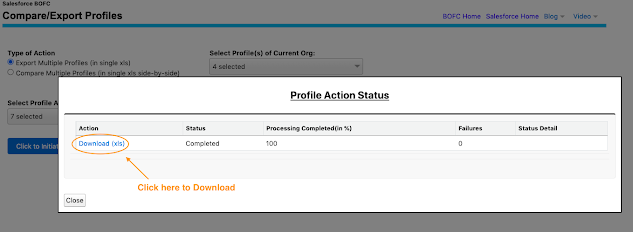
6. Once "Click to Initiate Process" button is clicked, it will display a popup on the page. This popup shows the status of your export for multiple profiles. Wait for couple of seconds, until status is changed to "Completed" in the export status table.


  1. Status: Shows if process got completed or not
  2. Failure: Shows no of profiles which got error out
7. Once status is "Completed", your file is ready for export. Click on "Download" link to download your profiles export in xls.


"Click Download Link" : On clicking this link, it will download a xls file for all the selected profiles. Each profile is represented as a separate tab in xls. Each Tab will have complete detail of all the selected profile attributes.

For more details, refer official webpage of this application


Wednesday, 29 May 2019

How to "Export Multiple Workflow Rules" of multiple objects in few clicks in salesforce?

Requirement:
For any Salesforce Admin or developer, if there is a requirement to Export multiple workflow rules for multiple objects (for any Standard or Custom Object)

Benefits of using BOFC Application for Exporting Workflow rules:
1. Works for both Standard and Custom Object rules
2. Perform any action on (Single or Multiple) workflow rules
3. Perform any action on rules of (Single or multiple) objects at same time
4. Easy to use with few clicks
5. Saves ample amount of time of doing manual work

Few Simple Steps to Export Workflow Rules in salesforce

1. Open the BOFC Home > Click "Bulk Update, Delete & Export Workflow Rules"

2. It will open below screen for Workflows


3. Select the "Type of Operation as Export" from the options and screen looks like below image:-

Above image has many features (each number has its description as below):
  1. Select the type of operation as Export from the dropdown.
  2. User can Select single or multiple objects from the dropdown
  3.  User Can Select the Type of Actions in includes in Workflow rules.
  4. Click on Download Validation Rules Button to export workflow  rules.
4. Once Download Validation Rules Button is clicked, it will download all the rules for selected object in xls file and once sheet Is opened it looks as per  below image:


For more details, refer official webpage of this application
How to delete "Multiple Workflow Rules" for multiple objects in few clicks in salesforce?

Requirement:
For any Salesforce Admin or developer, if there is a requirement to Delete multiple workflow rules for multiple objects (for any Standard or Custom Object)

Benefits of using BOFC Application for deleting workflow rules:
1. Works for both Standard and Custom Object rules
2. Perform any action on (Single or Multiple) workflow rules
3. Perform any action on rules of (Single or multiple) objects at same time
4. Easy to use with few clicks
5. Saves ample amount of time of doing manual work

Few Simple Steps to Delete Workflow Rules in salesforce

1. Open the BOFC Home > Click "Bulk Update, Delete & Export Workflow Rules"

2. It will open below screen for Workflows. 
3User can select single or multiple objects for which workflow rules needs to be deleted. Also select "Delete Workflow" and it will display a button called "Display Workflow Rules"

4. Once this button is clicked, it will display all the workflow rules related to selected objects:


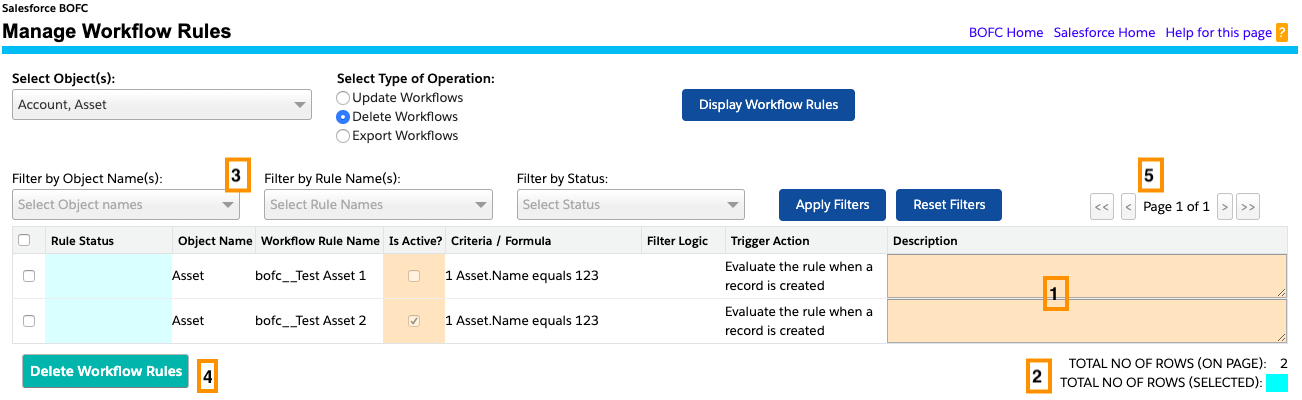
Above image has many features (each number has its description as below):
  1. Display all the workflow rules where "Is Active" and "Description" columns are editable
  2. It shows user of workflows on page and how many are selected
  3. User can use filter options to filter specific workflow rules:
    1. Filter by Object Name (if multiple objects are selected)
    2. Filter by workflow rule names
    3. Filter by Status
    4. Use "Apply Filters" and "Clear Filters" button to search and reset them.
  4. Button "Delete Workflow Rules" - On clicking this button, it will delete all the selected workflows in the system
  5. Use Pagination to navigate to next/previous page, if number of workflows are more than 80.

5. Select all the workflow rules by clicking "Select All" or by selecting each workflow rules individually.


6. Final Status in Green. Workflow deleted successfully


For more details, refer official webpage of this application