Showing posts with label workflow. Show all posts

Friday, 31 May 2019

How to Manage Workflow Rules for multiple objects in salesforce in few clicks?

Requirement:
For any Salesforce Admin or developer, if there is a requirement to manage below operations on Workflow rules for multiple objects,

  • UPDATE workflow rules for multiple objects
  • DELETE workflow rules for multiple objects
  • EXPORT workflow rules for multiple objects
  • CLONE workflow rules for multiple objects


For a developer, it will be a tedious and time taking job. User would have to open each workflow rule one by one using Salesforce Standard process.  These type of work requests would take much more effort and time, but with our Salesforce appexchange Bulk Object Field Creator (BOFC) App user can easily "Perform all the operations" within same Salesforce org in few clicks.

Benefits of using BOFC Application for Manage:
1. Works for both Standard and Custom Object rules
2. Perform any action on (Single or Multiple) workflow rules
3. Perform any action on rules of (Single or multiple) objects at same time
4. Clone Operations can clone rules along with all workflow actions
5. Easy to use with few clicks
6. Saves ample amount of time of doing manual work

Please refer below links for each type of actions for detailed description:
1. Update Rules: https://atocloud.blogspot.com/2019/05/how-to-update-multiple-workflow-rules.html

2. Delete Rules: https://atocloud.blogspot.com/2019/05/how-to-delete-multiple-workflow-rules.html

3. Export Rules: https://atocloud.blogspot.com/2019/05/how-to-export-multiple-workflow-rules.html


For more details, refer official webpage of this application

Wednesday, 29 May 2019

How to "Export Multiple Workflow Rules" of multiple objects in few clicks in salesforce?

Requirement:
For any Salesforce Admin or developer, if there is a requirement to Export multiple workflow rules for multiple objects (for any Standard or Custom Object)

Benefits of using BOFC Application for Exporting Workflow rules:
1. Works for both Standard and Custom Object rules
2. Perform any action on (Single or Multiple) workflow rules
3. Perform any action on rules of (Single or multiple) objects at same time
4. Easy to use with few clicks
5. Saves ample amount of time of doing manual work

Few Simple Steps to Export Workflow Rules in salesforce

1. Open the BOFC Home > Click "Bulk Update, Delete & Export Workflow Rules"

2. It will open below screen for Workflows


3. Select the "Type of Operation as Export" from the options and screen looks like below image:-

Above image has many features (each number has its description as below):
  1. Select the type of operation as Export from the dropdown.
  2. User can Select single or multiple objects from the dropdown
  3.  User Can Select the Type of Actions in includes in Workflow rules.
  4. Click on Download Validation Rules Button to export workflow  rules.
4. Once Download Validation Rules Button is clicked, it will download all the rules for selected object in xls file and once sheet Is opened it looks as per  below image:


For more details, refer official webpage of this application

How to delete "Multiple Workflow Rules" for multiple objects in few clicks in salesforce?

Requirement:
For any Salesforce Admin or developer, if there is a requirement to Delete multiple workflow rules for multiple objects (for any Standard or Custom Object)

Benefits of using BOFC Application for deleting workflow rules:
1. Works for both Standard and Custom Object rules
2. Perform any action on (Single or Multiple) workflow rules
3. Perform any action on rules of (Single or multiple) objects at same time
4. Easy to use with few clicks
5. Saves ample amount of time of doing manual work

Few Simple Steps to Delete Workflow Rules in salesforce

1. Open the BOFC Home > Click "Bulk Update, Delete & Export Workflow Rules"

2. It will open below screen for Workflows. 
3User can select single or multiple objects for which workflow rules needs to be deleted. Also select "Delete Workflow" and it will display a button called "Display Workflow Rules"

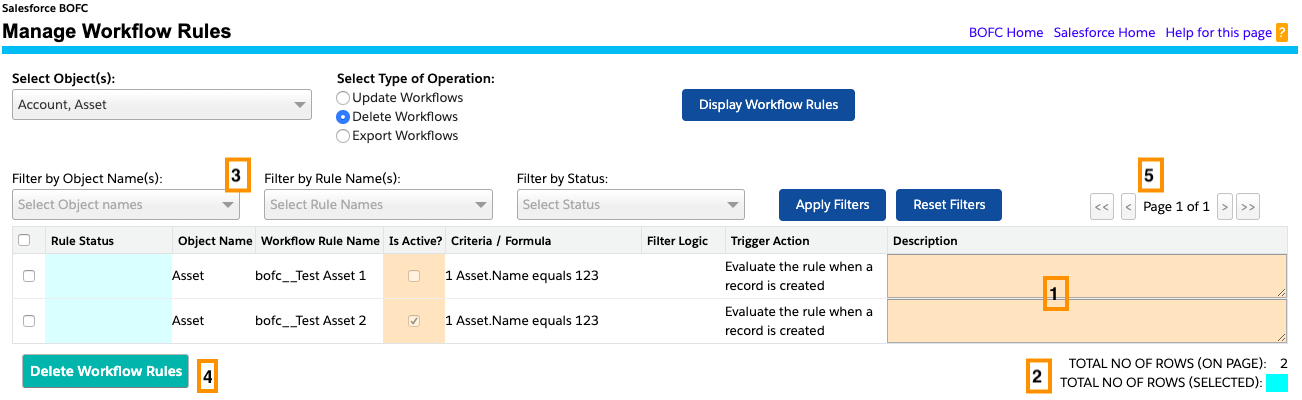
4. Once this button is clicked, it will display all the workflow rules related to selected objects:


Above image has many features (each number has its description as below):
  1. Display all the workflow rules where "Is Active" and "Description" columns are editable
  2. It shows user of workflows on page and how many are selected
  3. User can use filter options to filter specific workflow rules:
    1. Filter by Object Name (if multiple objects are selected)
    2. Filter by workflow rule names
    3. Filter by Status
    4. Use "Apply Filters" and "Clear Filters" button to search and reset them.
  4. Button "Delete Workflow Rules" - On clicking this button, it will delete all the selected workflows in the system
  5. Use Pagination to navigate to next/previous page, if number of workflows are more than 80.

5. Select all the workflow rules by clicking "Select All" or by selecting each workflow rules individually.


6. Final Status in Green. Workflow deleted successfully


For more details, refer official webpage of this application

Tuesday, 21 May 2019

How to update "Multiple Workflow Rules" for multiple objects in few clicks in salesforce?

Requirement:
For any Salesforce Admin or developer, if there is a requirement to Update multiple workflow rules for multiple objects (for any Standard or Custom Object)

Workflow updates includes: 
- Changing Rule description for multiple rules
- Changing Rule status from Active to Inactive or vice-versa for multiple rules

Benefits of using BOFC Application for Updating Workflow rules:
1. Works for both Standard and Custom Object rules
2. Perform any action on (Single or Multiple) workflow rules
3. Perform any action on rules of (Single or multiple) objects at same time
4. Easy to use with few clicks
5. Saves ample amount of time of doing manual work

Few Simple Steps to Update Workflow Rules in salesforce

1. Open the BOFC Home > Click "Bulk Update, Delete & Export Workflow Rules"

2. It will open below screen for Workflows
3. User can select single or multiple objects for which workflow rules needs to be updated. Also, select "Update Workflow" and it will display a button called "Display Workflow Rules"

4. Once this button is clicked, it will display all the workflow rules related to selected objects:

Above image has many features (each number has its description as below):
  1. Display all the workflow rules where "Is Active" and "Description" columns are editable
  2. It shows user of workflows on page and how many are selected
  3. User can use filter options to filter specific workflow rules:
    1. Filter by Object Name (if multiple objects are selected)
    2. Filter by workflow rule names
    3. Filter by Status
    4. Use "Apply Filters" and "Clear Filters" button to search and reset them.
  4. Button "Update Workflow Rules" - On clicking this button, it will update all the selected workflows in the system
  5. Use Pagination to navigate to next/previous page, if number of workflows are more than 80.

5. Select all the workflow rules by clicking "Select All" or by selecting each workflow rules individually.

6. Final Status in Green. Workflow updated successfully


For more details, refer official webpage of this application